
A landlord profile only needs to be created once. Once saved, the same profile can be linked to multiple properties in their portfolio, and agentOS will calculate the correct payment amounts for each property during a payment run.
If you prefer to keep finances separate per property — for example, to generate individual invoices per property — you can create more than one profile for the same landlord and differentiate each by adding a short address reference in the surname field, such as: Mr Joe Bloggs (24 Hillside). This is optional and a matter of preference.
Step 1: Navigate to Landlords
Click Lettings in the top navigation bar, then select Landlords from the Lettings menu.

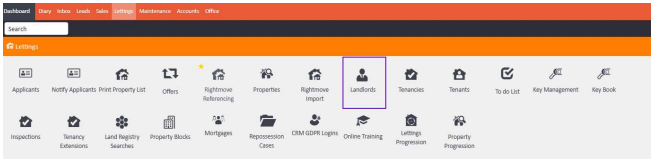
Step 2: Click Add
On the Landlords screen, click Add in the top right corner.
Step 3: Complete the landlord's personal details
The Add a Landlord screen will open on the Personal Details tab. Complete the relevant fields across three sections:
- Office Details — Branch Managed By, Default Service Type
- Landlord Name — Salutation, Title, Forename, Middle Name, Surname, Nationality, Date of Birth
- Contact Details — Email, Second Email Address, Email Copy of Invoice To, Mobile Phone, 2nd Mobile Phone, Emergency Out of Hours Number, Eblast Letters
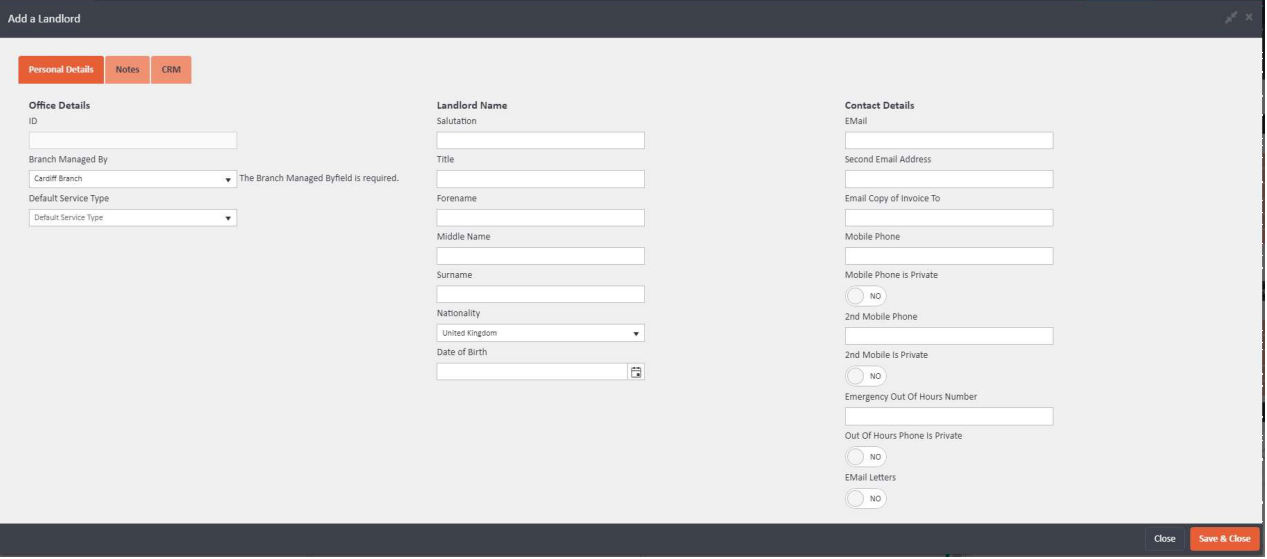
Click Save & Close. You will be taken to the landlord's record page.
Step 4: Add bank details
To add the landlord's bank details, click Edit in the top right corner of their record, then select the Bank Details tab.
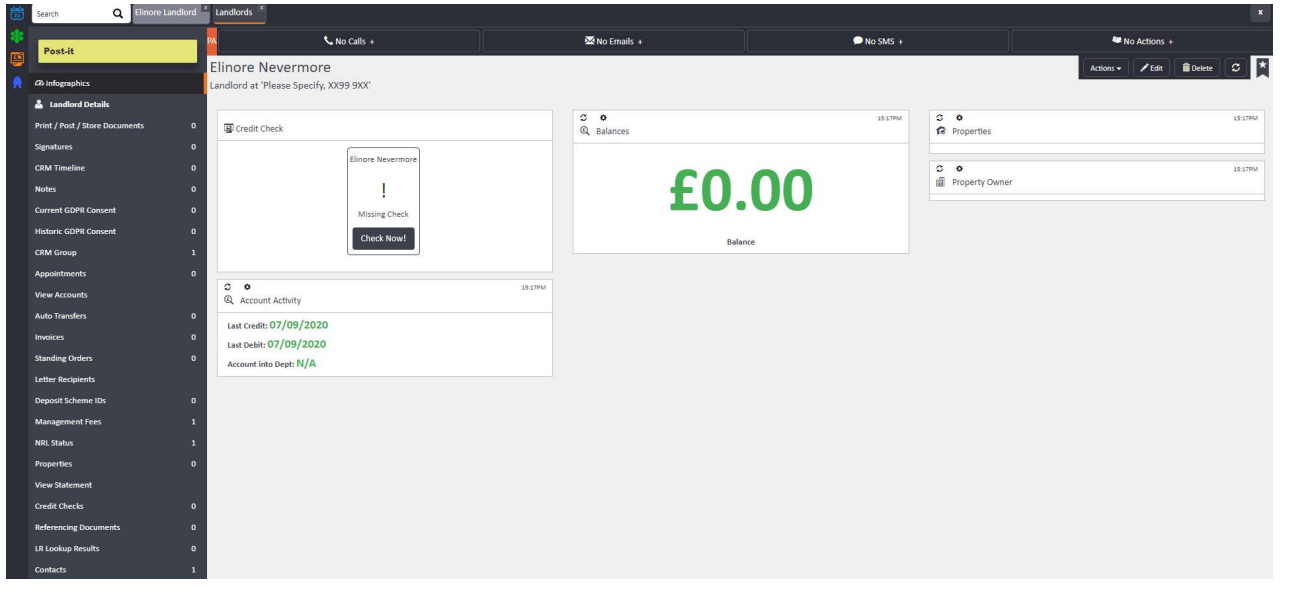
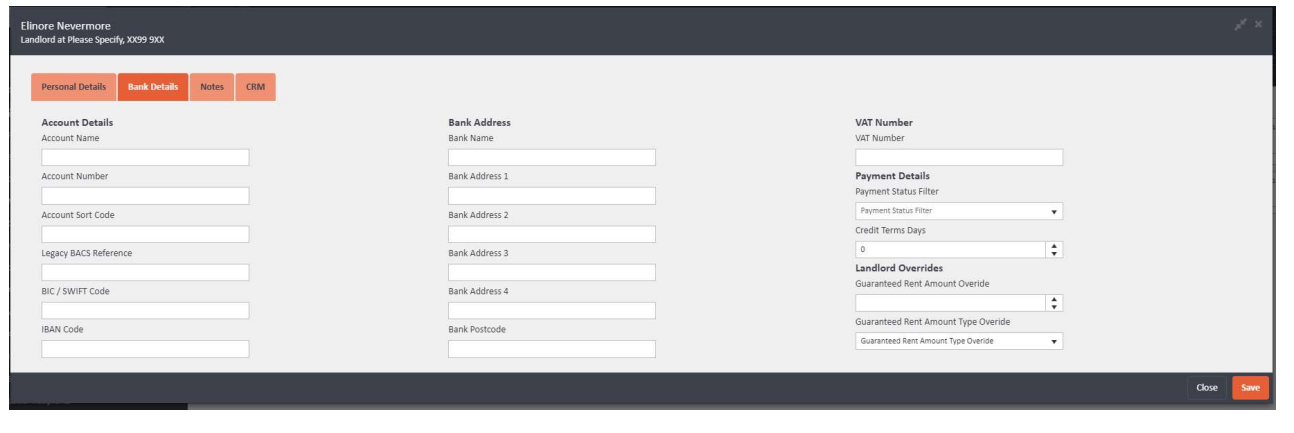
Complete the relevant fields, which include Account Name, Account Number, Sort Code, BIC/SWIFT Code, and IBAN Code. Click Save when done.
Step 5: Add the landlord's address
The landlord's address is stored in the Contacts section of their profile. Scroll down the left-hand navigation ladder on the landlord's record and click Contacts.

Click the Actions button on the right-hand side of the contact entry and select Edit Contact.
The Edit Contact window will open. Complete the Permanent Address fields — you can use the Address Finder button to search for and populate the address automatically. Click Edit Contact in the bottom right corner to save.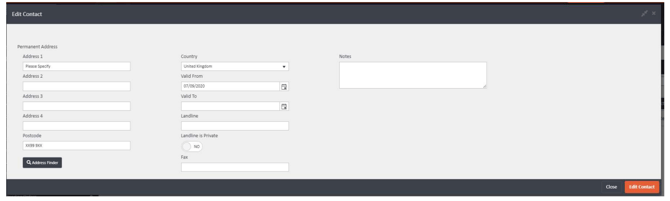
Once saved, the landlord's profile is ready to be linked to one or more properties. If you need further assistance, contact support@agentos.com.