
A closing inspection records the condition of each room at the end of a tenancy. You can add room-by-room outcomes, attach photos, raise maintenance jobs, and send inspection letters to the landlord and tenant — all from within the tenancy record.
Step 1: Open the tenancy
Use the quick search bar at the top of your screen to search for the property address, then select the tenancy.
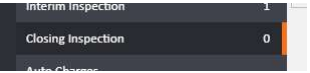
Step 2: Navigate to Closing Inspection
In the left-hand navigation ladder, click Closing Inspection.
Step 3: Add room outcomes
A form will appear with the following fields:
- Room — select the room from the dropdown (leave blank if the outcome applies to the whole property)
- Outcome — enter your notes on the condition of the room
Click Add to save the entry. Repeat this process for every room on the property. Each saved entry will appear in a list below the form.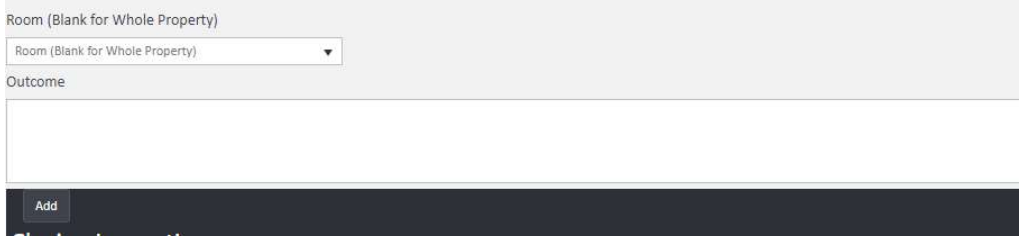
Further options
Once room entries have been saved, you have several additional options available:
Adding photos Click on an individual room entry, then click Photos in the left-hand navigation to drag and drop images for that room.
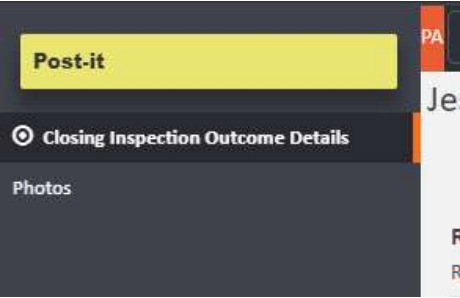
Raising a maintenance job To log a maintenance issue identified during the inspection, click the Actions button next to the relevant room entry and select the appropriate option.
Sending inspection letters To send closing inspection letters to the landlord or tenant, click the Actions button in the top right of the Closing Inspection screen and select the relevant letter from the menu.
If you need further assistance, contact support@agentos.com.