
The global Search bar at the top of agentOS is focused on returning relevant records quickly. Action and creation shortcuts that previously appeared in search results have been removed — these are now accessed directly from the dashboard or from within the relevant record.
What the Search Bar Can Do
The search bar returns results for the following record types:
- People records — searchable by email address and mobile phone number
- Sales Offers — now appear in search results
- Invoices — searchable using any of the following formats:
inv-123inv 123invoice 123
- Letters — searchable using any of the following formats:
post-123post 123letter 123
Results are ordered with the most recently created records appearing first.
What's No Longer in the Search Bar
The following have been removed from search:
- Closed Tenancies and Tenants — these are now accessed via the Tenancies and Tenants sections within Lettings
- Action shortcuts (e.g. 'Add a Landlord', 'Apply Charge – [Person Name]') — these are now accessed from the relevant record's Actions menu, or via the dashboard
Adding Records from the Dashboard
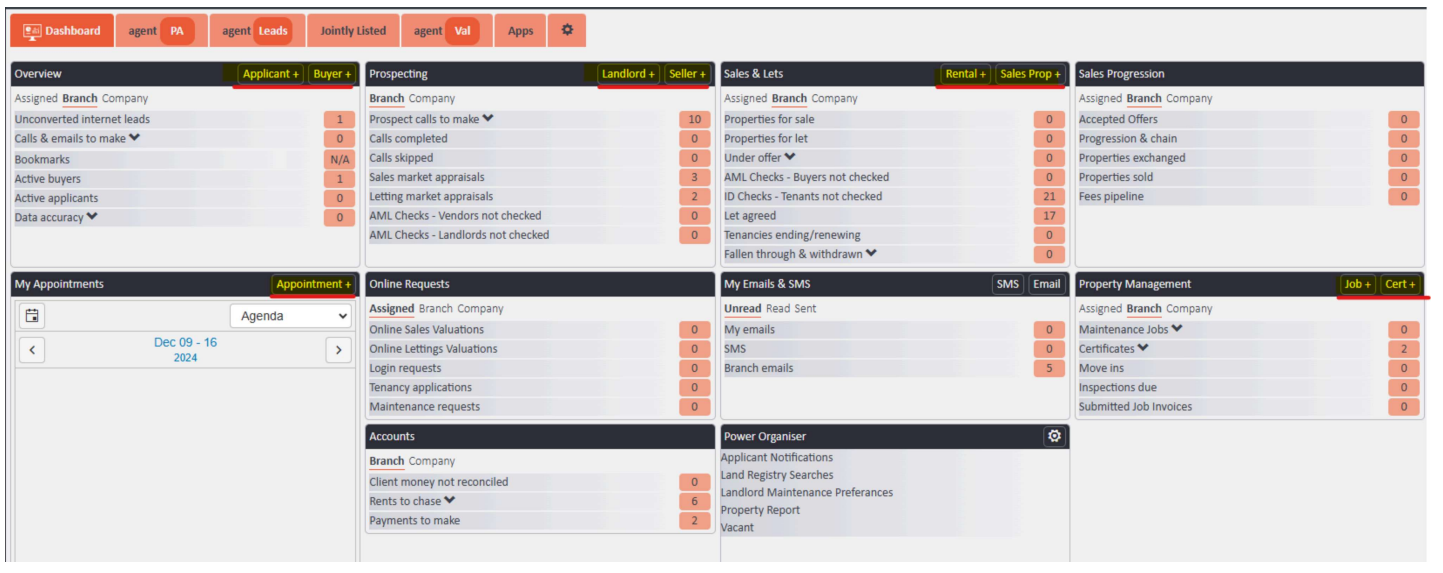
Most 'Add record' functions are available directly from the main dashboard using the + buttons in each section header.
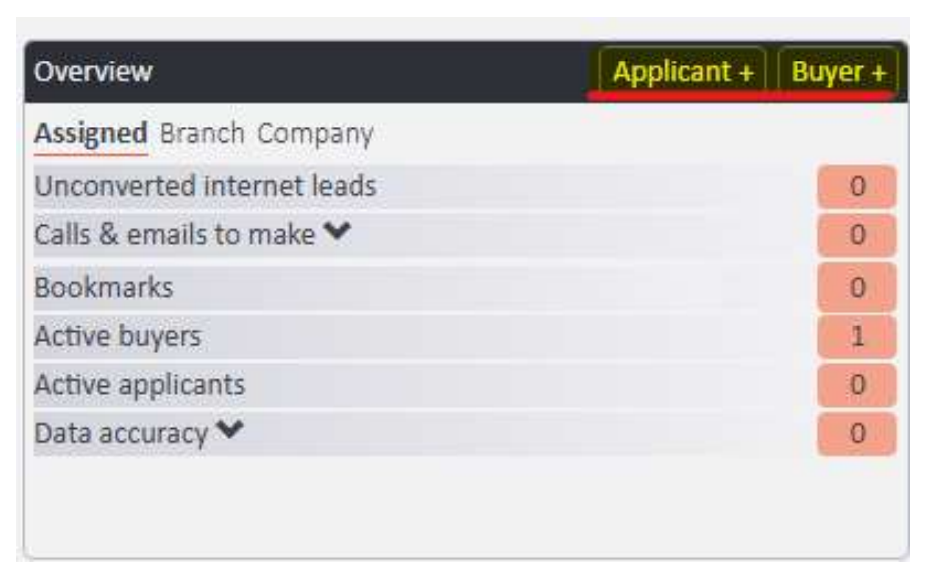
Add Applicant / Buyer
Use the Applicant + or Buyer + buttons in the top right of the Overview section.
Add Landlord / Seller
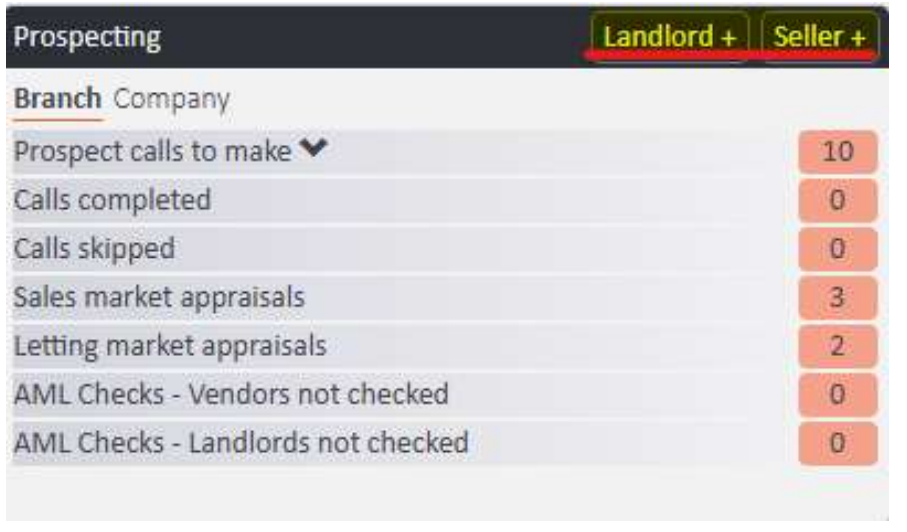
Use the Landlord + or Seller + buttons in the top right of the Prospecting section.
Add Maintenance Job / Certificate
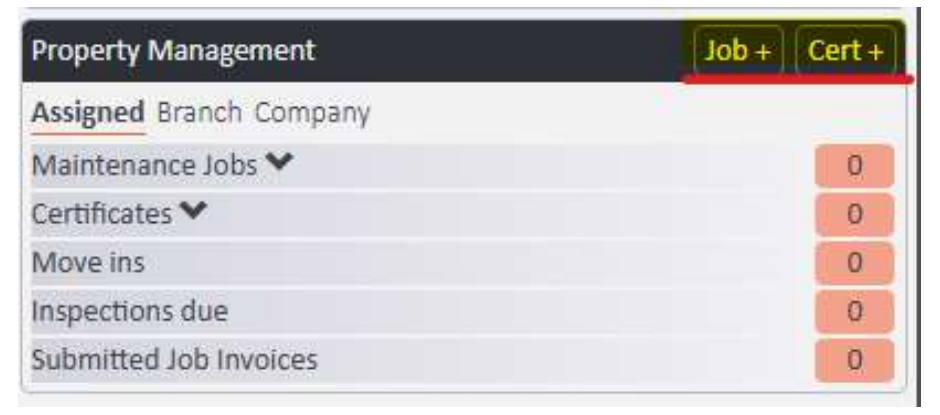
Use the Job + or Cert + buttons in the top right of the Property Management section.
📸 [Screenshot: Property Management section of the dashboard with 'Job +' and 'Cert +' buttons highlighted in the top-right corner of the section header]
Add Appointment
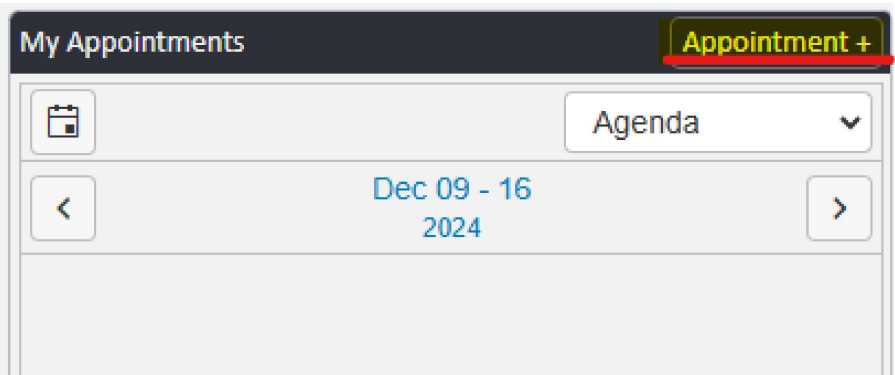
Use the Appointment + button in the top right of the My Appointments section.
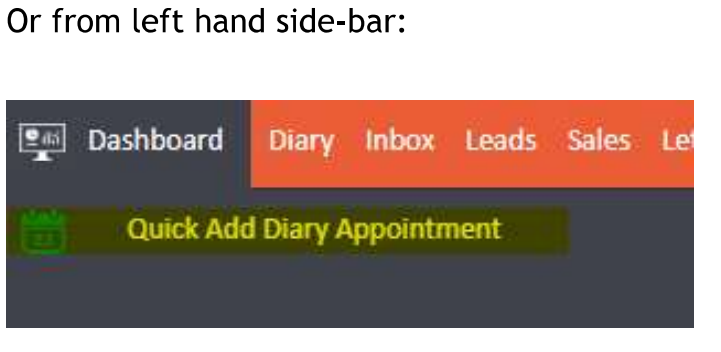
Appointments can also be added from the left-hand side-bar using Quick Add Diary Appointment.
Using Favourites for Quick Access
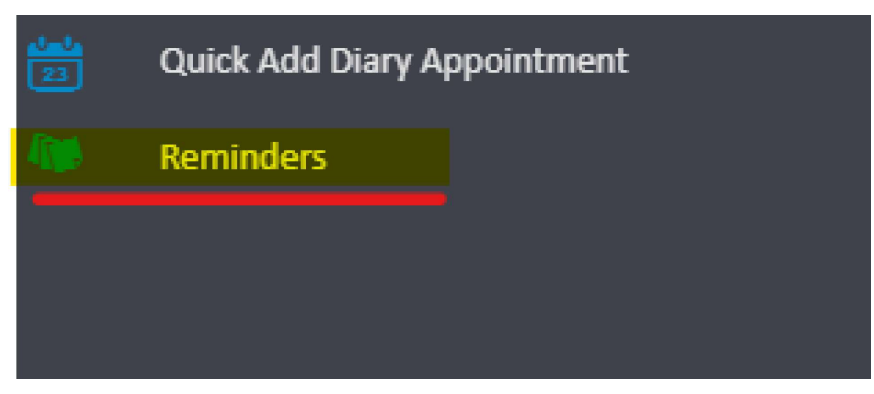
For functions not available directly from the dashboard — such as adding a reminder or a contractor — you can add these to the Favourites shortcut menu on the left-hand side of the screen.
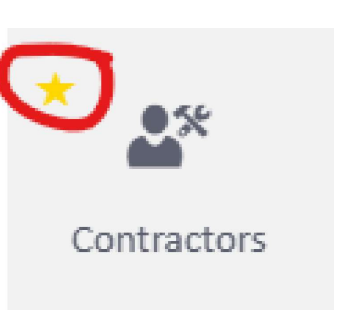
To add a function to Favourites, hover over the relevant icon and click the yellow star in the top-left corner of that icon.
📸
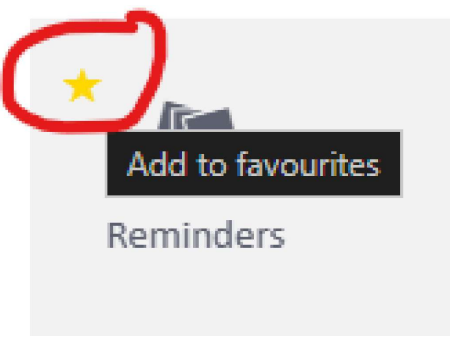
The item will then appear in the Favourites shortcut menu on the left-hand side of the screen, allowing you to access it in two clicks from anywhere in agentOS.
Example — Adding Contractors to Favourites
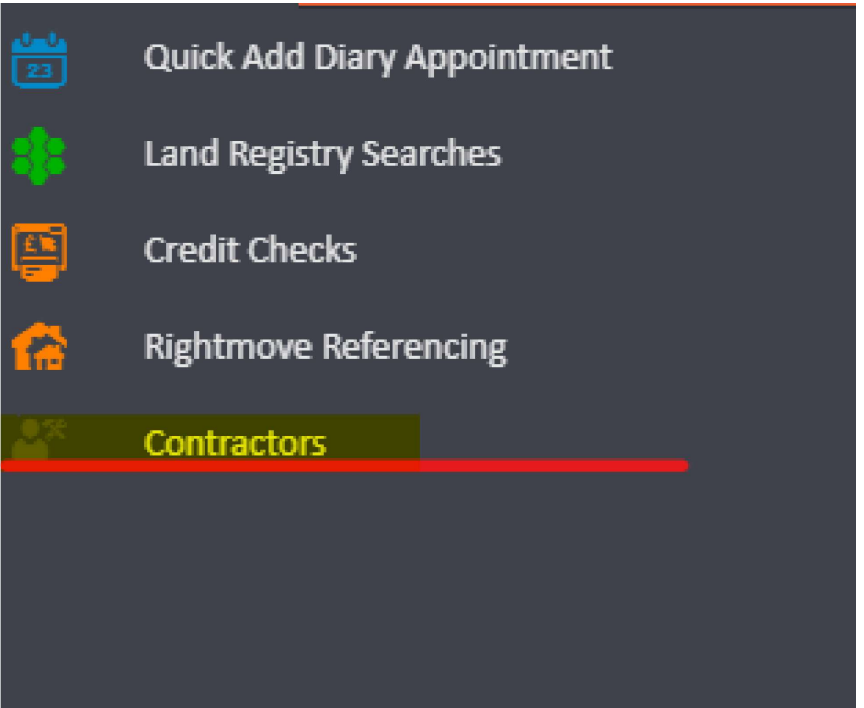
Navigate to Maintenance in the top navigation bar, then hover over the Contractors icon and click the yellow star.

Contractors will then appear in the left-hand shortcut menu. From there, click Contractors, then use the + Add button in the top right of the screen to add a new contractor.
Applying Charges and Maintenance Deductions
Charges and maintenance deductions are applied via the Actions menu from within the relevant person's record — this process is unchanged.
Allocating Funds to a Closed Tenancy
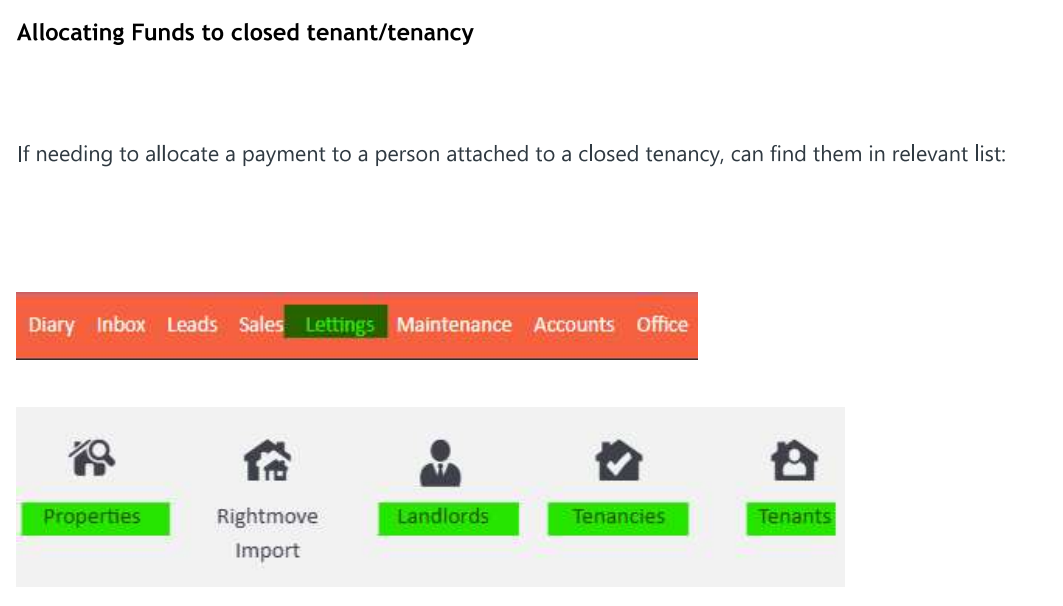
If you need to allocate a payment to someone attached to a closed tenancy, they will not appear in the search bar. Instead, find them via the relevant list in Lettings (Properties, Landlords, Tenancies, or Tenants).

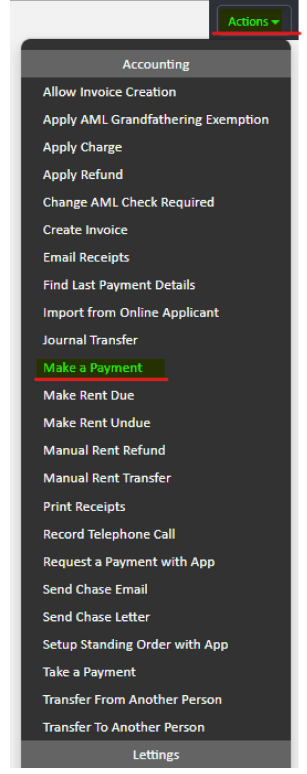
From their record, use Actions > Take a Payment to create a payment group to link the incoming payment to.
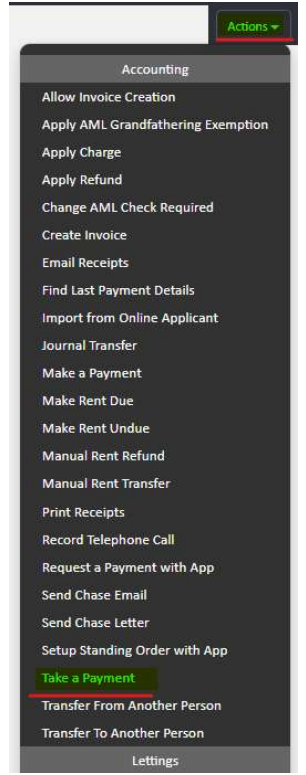
To make a payment out, use Actions > Make a Payment from the same record.
When reconciling, use "Link as payment or deposit" to link the payment to the payment group created above.
⚠️ Note: This process is only required when a tenancy is in Closed status but still has funds to be allocated. If a tenancy has ended but not yet been closed, the tenant will still appear in the search bar or via Link as once only.
If you need further assistance, contact support@agentos.com.