
When booking diary appointments in agentOS, you can automatically notify guests by email or SMS at the point of booking. This removes the need to send confirmations manually and helps reduce no-shows and miscommunications.
Adding a Guest and sending an automatic confirmation
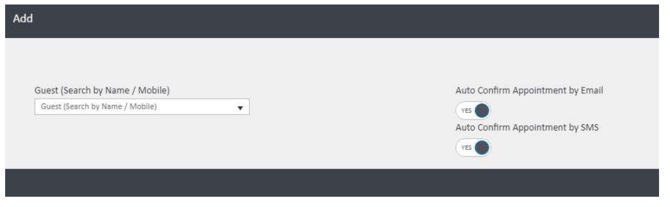
When adding a Guest to an appointment (found within the appointment itself), a pop-up window will appear with the following options:
- Auto Confirm Appointment by Email — toggle to Yes to send an email confirmation automatically
- Auto Confirm Appointment by SMS — toggle to Yes to send an SMS confirmation automatically
Set either or both to No if you do not wish to send a confirmation for that particular booking.
Using Quick Add Appointment
When adding an appointment via the Quick Add Appointment option in the diary, confirmations will be automatically sent to any Guests added, on saving the appointment — depending on how the branch settings are configured (see below).
Sending a manual confirmation
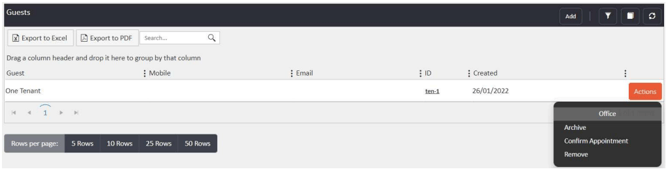
Confirmations can also be sent manually at any time — for example, if the date or time of an appointment changes. To do this:
- Open the diary appointment and navigate to the Guests section.
- Locate the guest you wish to notify.
- Click Actions next to their name.
- Select Confirm Appointment.
What the confirmation message contains
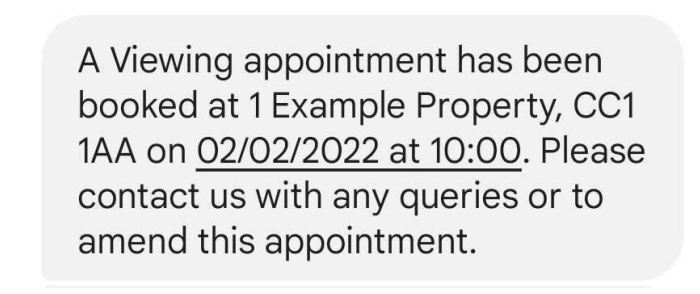
If a Sales Property or Letting Property has been linked to the appointment before the confirmation is sent, the property details and appointment type will be included in the message wording.
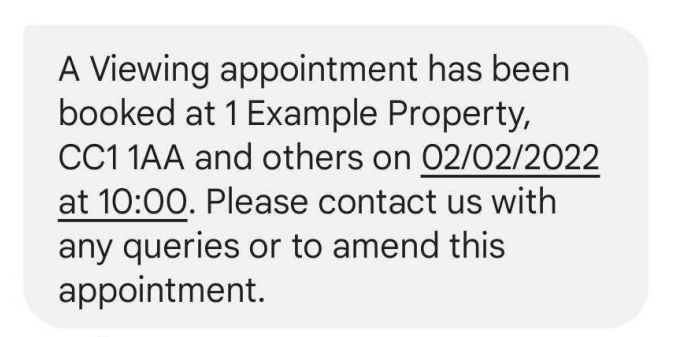
If the booking includes more than one property, only the first listed property will be shown, with and others appended to the address. This keeps SMS messages concise and reduces associated messaging costs.
Calendar link in SMS confirmations
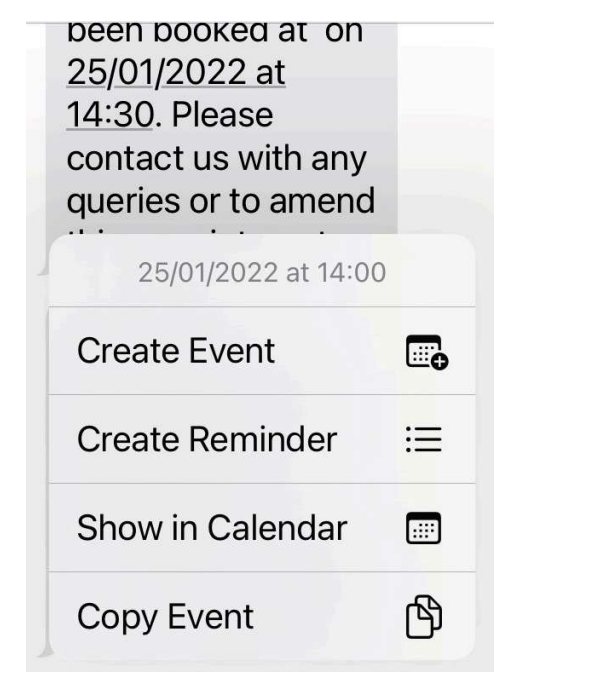
On most Android and iOS devices, the date and time in the SMS confirmation will appear as a clickable link, allowing the recipient to add the appointment directly to their device's calendar app.
📸 [Screenshot: Mobile device screen showing an SMS confirmation with the date "25/01/2022 at 14:30" as a clickable link, and a calendar options pop-up showing: Create Event, Create Reminder, Show in Calendar, Copy Event]
Note: This calendar link functionality is controlled by the recipient's device, not by agentOS. If the link does not appear, the user should consult their device's user guide or manufacturer.
Configuring default branch settings
A default confirmation preference (Yes or No for both Email and SMS) can be set for each branch under Admin > Branch Details. This determines the default toggle state shown when adding a guest to an appointment.
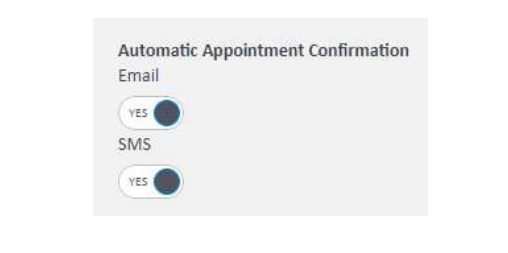
Note: To change the default branch confirmation settings, please contact support@agentos.com.